Guides
Create a site
Create a new site from a one-line description and optional links, and get a first draft in the editor. For anyone starting their first site or adding another.
Needs Free · 5 minutes
Before you start
- A nertia account. Go to nertia.ai/signup and press Continue with Google, or enter a name, an email and a password and press Create account.
- No card. The free plan includes the whole builder: every section, every layout, every design system.
1. Open New site
Press + on the top bar to open New site. If you have no sites yet, signing in opens it.

The screen asks one question: What are you building? Below the prompt sit the Layouts and the Design systems. Both are optional.
2. Describe it
Type one line about the site into the prompt, like "A landing page for a dog groomer in Bend". Name the audience and the location, and the first draft uses them.

If you have no text yet, press one of the shapes above the prompt: A landing page for a service, A portfolio, A link page or A store.
If you know the look you want, pick a card under Layouts or Design systems. If you leave them, the build chooses.
3. Add a link or a file
Press + in the prompt to give the build something to read. Links are optional, and the build takes its text and media from them.

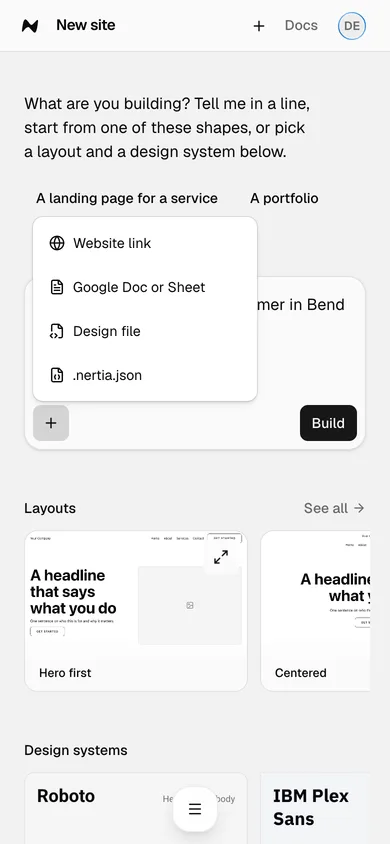
| Item | What it reads |
|---|---|
| Website link | Your current site, for its text and media |
| Google Doc or Sheet | Your copy, or a list of services or products |
| Design file | A .dc.html or .zip design pack |
| .nertia.json | A site exported from nertia |
Each link takes a short note in What is this? that tells the build what the link is for. You can add up to five links.
4. Build
Press Build. The editor opens with a first draft of the site.

The page sits in the middle. Layers on the left lists its sections, top to bottom. The Chat tab lists what the build did and takes your next change.
Press Build on New site.
5. Find your way around
Every site has its own home, Overview, with the tabs down the left. Press Overview at the top of the editor to get there.

| Tab | What it is for |
|---|---|
| Overview | Status, releases, pages, traffic for the last seven days |
| Editor | Build the pages |
| Design | Fonts, colours and the site's design system |
| Inbox | Messages from your contact and lead forms |
| Media | The site's images and files |
| SEO | Search title, description and the share card |
| Domains | Your free address and your own domain |
| Social | Connected accounts, posting and scheduling |
| Store | Products, Stripe and orders, on Particle and Wave |
| Analytics | Views and visitors over time |
| Settings | Name, address, members, footer, delete |
Done
The site opens in the editor with a first draft, and its Overview lists every tab. Next: pick a layout.
Problems
- Build is grey. The prompt is empty. Type a line, press a shape, or pick a layout.
- You signed up halfway through. Links carry through sign in, files do not. Add your files again on New site.
- A link will not add. Paste a full web address, like
example.comor a Google Doc link. - Five links is the most. Remove a link to add another.