Guides
Publish
Put your site live from the editor, or publish to a preview first, then manage every release on Overview. For anyone with a site, on any plan including the free one.
Needs Free · 2 minutes
Before you start
- A site open in the editor. If you have no site yet, start with Create a site.
- Every edit is saved as you go. Nobody sees a save until you publish it.
- Publishing is on the free plan.
1. Press Publish
Press Publish on the editor's top bar. It makes a release, a frozen copy of the site at this moment, and puts it live in one step.

To check a change before the public sees it, open the arrow beside the button and press Publish to preview only. That makes a release without putting it live.
Press Publish on the editor's top bar. The arrow beside it holds Publish to preview only.
2. Check the address
The first time, a dialog asks you to confirm before anything goes live: Publish and put the site live? The address becomes permanent at that moment, so nertia asks once.

If the site still has a temporary address, nertia asks you to pick one first, then continues the publish. After the first time, Publish goes straight through.
3. Confirm
Press Publish in the dialog. A note says Published and live, and the top bar button reads Published.

The button keeps saying Published until your next edit, then reads Publish again. Cancel closes the dialog and publishes nothing.
4. Check Releases on Overview
Open Overview and find the Releases card. It lists every release, newest first, with a badge for the one that is Live and the one that is the Preview.

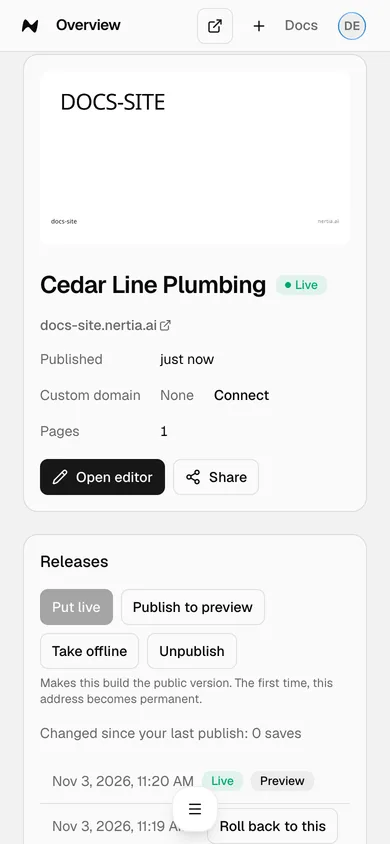
| Button | What it does |
|---|---|
| Put live | Makes the preview the public version |
| Publish to preview | Makes a release from the current saves without going live |
| Put this live | On a newer release: puts that one live |
| Roll back to this | On an older release: serves it on every live address. Newer releases are kept |
| Take offline | Shows a coming soon page on every live address. The releases are kept |
| Put back online | Reverses Take offline |
| Unpublish | Stops both the preview and the live address. The releases and the address are kept |
Under the buttons, "Changed since your last publish" counts the saves waiting for a release.
Done
Your site is live at its address, and the Releases card shows the new release marked Live. Next: build and publish from Claude, or connect your own domain.
Problems
- The button says Publish to preview. Owners and managers can put a site live, roll back and take it offline. Editors can publish to the preview only. See Members on the Settings tab.
- The status says Coming soon. The site is published but taken offline. Press Put back online on the Releases card.
{slug}.nertia.aishows changes you have not put live. Until the site goes live for the first time, that address shows the preview, so you can see the whole site at its real address. After that, it serves the live release, and the preview has its own link on Overview. Your own domain always serves the live release.- Put live is grey. The preview is already the live release. Publish a change first.