Tools
Build from Claude
Add nertia to Claude as a connector, then read, edit and publish your sites from a chat. For nertia account holders on a Claude plan with connectors, on the web or on Claude Desktop.
Needs Free · 5 minutes
Remote MCP
Paste into Claude → Customize → Connectors
Before you start
- A nertia account. Go to nertia.ai/signup, or sign in if you have one.
- A Claude plan with connectors, on the web or on Claude Desktop.
- A site to work on. If you have no site yet, start with Create a site.
1. Copy the connector URL
Press Copy in the Remote MCP box at the top of this page. That copies the connector URL, https://ner.sh/api/mcp/streamable.

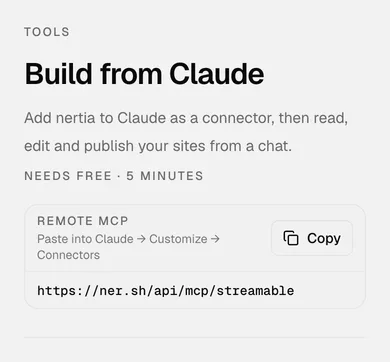
The short link ner.sh/mcp opens this page. Every tool is listed in the Connector reference.
2. Add it in Claude
In Claude, open Customize, then Connectors, then Add custom connector. Name it nertia and paste the URL.

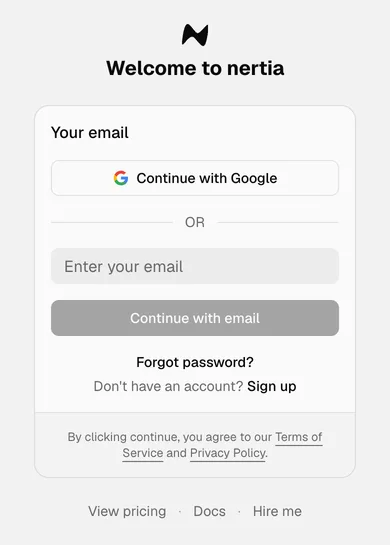
Leave OAuth Client ID and Secret blank. nertia registers the client and signs you in itself.
Press Add, then Connect when Claude asks. Sign in on www.nertia.ai, with Google if that is how your account signs in. Claude shows Connected. Switch the connector on and the tools appear.
3. Ask for the site
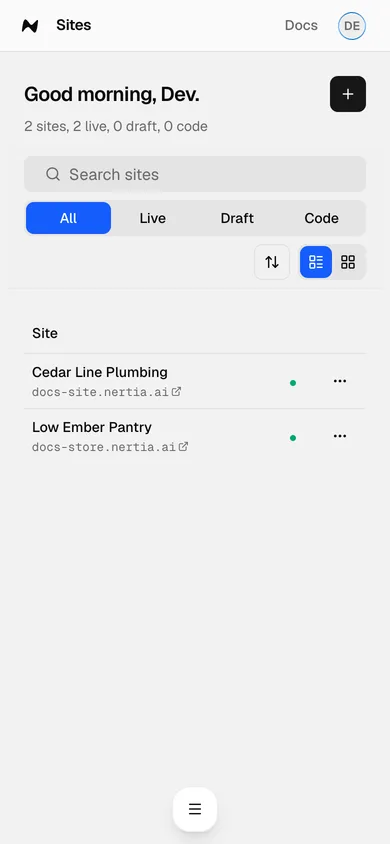
Ask Claude to look at your site by its address, for example "Open cedar-line-plumbing on nertia". Claude reads the same pages, sections and text you see in the editor.

To learn what it can change, Claude calls get_site_schema:
{
  "slug": "cedar-line-plumbing"
}
The answer lists every page, every section with its instanceId, and each section's copy slots with their current text. A slot with a length limit says so, and Claude writes within it.
4. Make a change
Tell Claude what to change, for example "Make the headline say Plumbing done right in Bend". Claude writes the change to the site.

Claude calls update_copy with one patch per slot. Each key is the section's instanceId, a dot, and the slot:
{
  "slug": "cedar-line-plumbing",
  "patches": {
    "hero-heading-1dc6.text": "Plumbing done right in Bend"
  }
}
The patch merges with the copy already there. Slots you leave out keep their text.
The change is saved to the site. Visitors see it after you publish, as with every edit.
5. Publish from Claude
Ask Claude to publish. It calls publish_site with a target, and the release shows up on the Releases card on Overview.

{
  "slug": "cedar-line-plumbing",
  "target": "staging"
}
staging makes a release for the preview only. production publishes and puts the site live in one call, with no confirm dialog. Check the preview first, then ask for production. The Publish guide has the rest of the card.
6. Claude Desktop
On Claude Desktop, add nertia to claude_desktop_config.json instead of a custom connector. There is no repository path to set and no token to paste.

{
  "mcpServers": {
    "nertia": {
      "command": "npx",
      "args": ["-y", "@nersh/mcp"]
    }
  }
}
The first run opens a nertia sign-in page in your browser. Sign in, and Claude Desktop works on the same sites as your account. To sign in again later, run npx @nersh/mcp login.
Done
Claude can read, edit and publish your sites. Every tool, and what it takes, is in the Connector reference. If you build in your own repository, see Code sites.
Problems
- Claude does not show the tools. Switch the connector on. The tools appear once it is on.
- Claude Desktop keeps asking you to sign in. Run
npx @nersh/mcp loginand finish the sign-in in the browser. - Claude Desktop says the token is invalid. Delete
~/.config/nersh/credentials.jsonand sign in again. - Claude says a code site cannot be edited. A code site is built from your repository. Edit the code there, then ask Claude to run
publish_from_github.