Guides
Forms and inbox
Add a form to your page and read each message a visitor sends in your Inbox. For site owners and managers, on the free plan.
Needs Free · 5 minutes
Before you start
- A site open in the editor. If you have no site yet, start with Create a site.
- Forms and the Inbox are on the free plan.
- You need the owner or manager role on the site. Editors cannot open the Inbox.
Forms only take messages on a published site. See Publish.
1. Put a form on the page
Open Add in the editor's left column and type form in the search box. The Contact group holds three sections with a form: Form beside booking, Centered form and Form in a card beside trust points.

Click one to add it after the selected section, or drag it onto the page. Name, Phone, Email and a free text box come ready. Edit the labels and the Send button with Edit text.
A form takes messages once it has a notification email. That is the address each message is also mailed to. It stays on the server: your page never shows it, and a visitor's browser never receives it.
Select the form on the page, open Properties and type the address in Notification email.
A form with no notification email shows the visitor an error and saves nothing. A Contact section has its own Contact form switch, which must be on, and an email slot.
2. A visitor sends a message
On your live site, the visitor fills in the form and presses Send. Name and Email are required.

The page then shows your success message, "Thanks. We will be in touch soon." unless you changed it. The pictures here stop before Send, because a real send would also mail the notification address.
A message goes two places:
| Where | What it holds |
|---|---|
| Inbox | Name, email, the time and the message |
| Notification email | The same, plus the phone number, with a link to your Inbox |
A field that is not Name, Email, Phone or Message joins the message as label: answer. "What do you need?" arrives as notes: .... Phone goes to the email only, so ask for what you must read in the message box. A site only takes a few messages a minute from one visitor, and a hidden spam trap catches most bots.
3. Read it in the Inbox
Open your site and pick Inbox in the sidebar. The newest message is first.

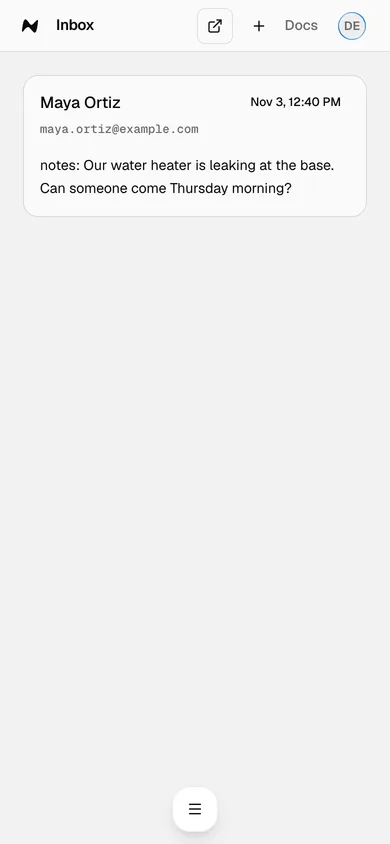
The sender's email is a link. Press it and your mail app opens a reply to them. The Inbox has no reply box and no delete, so answer from your own mail.
The Inbox lists the 50 most recent. Until the first message arrives, it says "No messages yet".
Done
Messages sent from your live form appear in the Inbox, newest first, and in your notification email. Next: see your plan and billing.
Problems
- The visitor sees an error and nothing lands in the Inbox. The form has no notification email, or the Contact section's Contact form switch is off. Set it as in step 1, then publish.
- The form does nothing in the editor. Forms send from the live site, not from the editor. Publish, then try it there.
- You see "No messages yet" but someone says they sent one. Check the form's address, then your spam folder. Messages only come from a published site.
- The Inbox is missing for a teammate. Only owners and managers see it. Messages never appear on the public site.
- You export the site. The site file does not carry messages. Copy anything important out of the Inbox or your email first.